

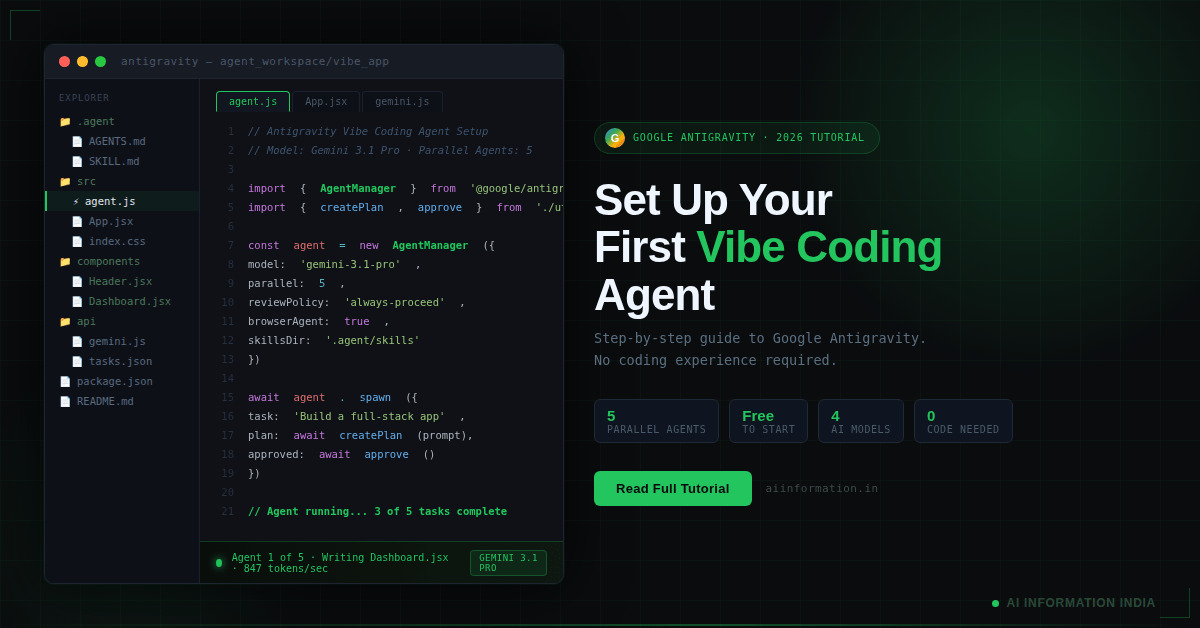
Google Antigravity is a free, agent-first IDE built by Google on top of VS Code. It uses Gemini 3 Pro to let you run multiple AI agents in parallel that plan, write, test, and debug your code for you. You describe what you want to build, and the agents handle everything else.
KEY FACTS TABLE
| Fact | Detail |
|---|---|
| Launched | November 2025 (Public Preview) |
| Built On | VS Code fork |
| Primary Model | Gemini 3.1 Pro |
| Other Models Supported | Claude Sonnet 4.6, Claude Opus 4.6, GPT-OSS 120B, Gemini 3 Flash |
| Free Tier | Yes (weekly rate limit) |
| Paid Plans | Pro $20/mo, Ultra $249.99/mo |
| Max Parallel Agents | 5 |
| Platform | Mac, Windows, Linux |
| Requires Coding Skills | No |
| Official Site | antigravity.google |
Table of Contents
INTRO
I spent three weeks building full apps inside Google Antigravity.
Not just testing it for 30 minutes and writing a quick take. I mean actually using it as my primary development environment for a real project. What I found genuinely surprised me, both in a good way and in a frustrating way.
Google Antigravity is not a chatbot. It is not an autocomplete tool. It is an agentic development platform where multiple AI agents work in parallel, across your editor, terminal, and browser, to build software for you. You are the architect. The agents are your engineering team.
If you have ever heard of vibe coding and wondered what it actually looks like in practice, this is the most complete version of it available right now. No prior coding experience is required.
This tutorial will walk you through everything. What Antigravity is, how to install it, how to set up your first vibe coding agent, how to write prompts that work, and whether it is worth your time in 2026.
Let me save you the confusion I went through when I first started.
What Is Google Antigravity?
Google Antigravity is Google’s official agentic IDE, launched in November 2025 as a free public preview. It is built as a fork of Visual Studio Code, so the base interface will feel familiar if you have ever opened VS Code.
But the similarity ends there.
Where VS Code or Cursor gives you AI suggestions you type around, Antigravity gives you autonomous agents that take over the entire task. You tell the agent what to build. It figures out the file structure, installs dependencies, writes the code, runs the terminal, tests the browser output, and reports back to you with screenshots and logs.
The term for this style of working is vibe coding. You describe the vibe, the goal, the feel. The AI does the building. If you are new to the concept, read my full explainer on what vibe coding is and how it works first.
Antigravity is the most complete implementation of vibe coding in a desktop IDE right now.
How Is Google Antigravity Different From Cursor or GitHub Copilot?
This is the first question everyone asks. Here is the honest answer.
Cursor and GitHub Copilot are coding assistants. They help you write code faster. You are still making most of the decisions. They autocomplete, suggest, and refactor based on what you are doing.
Antigravity is a coding agent. You are not typing code at all. You are giving high-level instructions, and the agent executes the entire workflow. This includes planning, building, testing, debugging, and verifying the output inside a real browser.
Think of it this way. Copilot is a smart keyboard. Antigravity is a junior development team that works 24 hours a day and never asks for a salary.
The architecture is also different. Antigravity runs up to 5 parallel agents at the same time. One can refactor your backend while another fixes a CSS bug and a third generates unit tests. No other tool on the market does this as cleanly right now.
To understand more about how AI agents work in general, read my article on what an AI agent is.
System Requirements and Download
Before you install, here is what you need:
- A personal Google (Gmail) account
- Mac, Windows, or Linux (all supported in public preview)
- Stable internet connection
- At least 4GB of RAM (8GB recommended for smooth parallel agents)
- No prior coding experience required
The download is available at antigravity.google. Click the Downloads section and select your operating system. The installer is straightforward. It works exactly like installing any desktop app.
If you use VS Code currently, you can import your existing settings, extensions, and themes during setup. This makes the transition nearly instant if you are already in that ecosystem.
How to Install Google Antigravity Step by Step
Here is the exact installation flow I went through on my first setup.
Step 1: Download the installer. Go to antigravity.google, click Downloads, and choose your OS version. The file size is roughly comparable to VS Code itself.
Step 2: Run the installer. Launch the installer file. It walks you through a standard app installation with no surprises.
Step 3: Sign in with Google. Once open, you will be prompted to sign in with your Gmail account. The public preview is free for personal Google accounts. Enterprise users need Google AI Ultra for Business.
Step 4: Choose your setup flow. Antigravity asks if you want to import from VS Code or Cursor, or start fresh. If this is your first time, choose a fresh start.
Step 5: Pick your editor theme. Dark theme is the default recommendation. I went with dark. It also fits better for long sessions.
Step 6: Set your Review Policy This is important. You will see a setting for how much autonomy the agent has in your terminal. You have two choices:
- Always Proceed: The agent runs terminal commands automatically without asking you first. This is the true vibe coding experience.
- Request Review: The agent asks your permission before each terminal command.
For your first project, I recommend starting on Request Review so you can see what the agent is doing. Once you trust the workflow, switch to Always Proceed.
Step 7: You are ready The Agent Manager opens. This is your home screen going forward.
The Agent Manager: Your Mission Control
When Antigravity opens, you are not dropped into a code editor. You are dropped into the Agent Manager.
This is the dashboard that shows you all your active agents, their current status, what artifacts they have produced, and where they are in a task. Think of it like a project management board where every card is an AI agent doing real work.
From the Agent Manager you can:
- Spawn new agents for new tasks
- Monitor active agents in real time
- Review artifacts (task plans, implementation plans, screenshots)
- Provide feedback that gets folded back into the agent’s work
- Kill an agent if something goes wrong
- Switch between parallel agents on different workspaces
The Agent Manager is the biggest design difference between Antigravity and every other AI coding tool. It treats the AI as the primary actor and you as the manager, not the other way around.
If you want to understand the broader concept of agentic AI before diving deeper, read my article on what agentic AI is and why it matters.
Setting Up Your First Vibe Coding Agent
Alright. This is the part you actually came for.
Here is how to launch your first agent in Antigravity from scratch.
Step 1: Open Agent Manager This should already be open when you launch Antigravity. If not, click the Agent Manager icon on the left sidebar.
Step 2: Select your model Click on the model selector dropdown. Your default will be Gemini 3.1 Pro. This is the best option for most tasks. You can also choose Gemini 3 Flash (faster, lighter), Claude Sonnet 4.6, Claude Opus 4.6, or GPT-OSS 120B.
For a first project, Gemini 3.1 Pro is the right choice.
Step 3: Create a new workspace Click “New Workspace” and select or create a folder on your computer where your project files will live. This is where the agent will write all your code.
Step 4: Write your first prompt This is where most people get stuck. I will give you a working prompt formula in the next section.
Step 5: Submit and watch Once you submit your prompt, the agent immediately begins working. You will see it generating a task list and then an implementation plan before it writes a single line of code.
Step 6: Review the plan before approval This step is critical. Do not skip it. Read the plan, leave comments if you want to change anything, and then approve. The agent will not proceed to coding until you approve.
Step 7: Watch the agent build After approval, the agent opens files, installs packages, writes components, and runs tests. You can watch every action in real time.
How to Write Prompts That Actually Work in Antigravity
This is the most important skill in vibe coding. And it is completely different from how you prompt ChatGPT.
Antigravity agents are autonomous. They can run commands, create files, launch apps, and test everything on their own. This power means your prompts need to be structured like instructions to a capable developer, not quick requests.
The 3-Part Prompt Formula:
Part 1: High-level goal + vibe Describe what you want to build and how it should feel. Be specific about the aesthetic.
Part 2: Detailed requirements in bullet points Break down the functionality, design, UX, and any technical preferences the agent needs.
Part 3: Plan-first safety instruction Always end with: “Before writing any code or running any commands, generate a detailed implementation plan as an artifact and ask for my approval.”
Bad Prompt Example: “Build me a to-do app.”
Good Prompt Example: “Build a clean, minimal to-do app with a dark background and green accent colors. Features: add tasks, mark complete, delete tasks, filter by status. Stack: plain HTML, CSS, JavaScript. No frameworks. Before writing any code, generate a detailed implementation plan as an artifact and ask for my approval before proceeding.”
The difference is massive. The good prompt gives the agent everything it needs to succeed on the first attempt. The bad prompt will result in a generic output that misses what you actually wanted.
The Implementation Plan Workflow Explained
One of the best features in Antigravity is the implementation plan workflow. It is what separates this tool from every chat-based coding tool.
Here is what happens after you submit a good prompt:
Phase 1: Task Checklist The agent first generates a task checklist. This is a high-level outline of every step it plans to take, from setting up the file structure to final UI polish.
Phase 2: Implementation Plan Artifact Before writing code, the agent creates an implementation_plan.md file. This document details which files will be created, what logic will be used, what dependencies will be installed, and in what order.
Phase 3: Your Review You read the plan. You can leave comments directly on specific sections. If you want a different color palette, a specific library, or a different folder structure, you say so here.
Phase 4: Approval You click approve. The agent then begins execution.
Phase 5: Execution The agent opens the terminal, installs packages, creates files, writes components, and handles errors on its own. You watch it happen in real time.
This workflow protects you from wasted compute and unexpected changes. It is the feature I use most consistently.
Running Parallel Agents: How to Use It Properly
Antigravity supports up to 5 parallel agents working simultaneously. This is where the real speed advantage comes from.
Here is an example of a parallel workflow I ran for a recent project:
- Agent 1: Refactor the authentication system
- Agent 2: Fix three CSS layout bugs in the dashboard
- Agent 3: Write unit tests for the API endpoints
- Agent 4: Generate documentation for the codebase
All four ran at the same time. What would have been a full day of work was done in under two hours.
Here is how to set up parallel agents:
- In the Agent Manager, click “New Agent” for each task
- Assign each agent to its own workspace or subfolder
- Give each agent a specific, scoped prompt
- Monitor all of them from the Agent Manager dashboard
The key is to keep each agent’s task scoped and independent. If two agents are editing the same file at the same time, you will get conflicts. Treat each agent like a developer working on a separate branch.
Using the Built-In Browser Agent for Testing
This feature alone sets Antigravity apart from Cursor and Copilot.
Antigravity includes a built-in Chrome browser that agents can control directly. When your project has a frontend, the agent can launch it in the browser, click through the UI, and capture screenshots and screen recordings of the entire experience.
You do not have to manually open a browser and check if things work. The agent tests the UI for you and reports back with visual evidence.
Here is how to enable it:
- After your build is complete, prompt the agent: “Launch the app in the browser agent, test the main user flow, and capture a screen recording.”
- The agent will spin up a Browser Sub-Agent
- Watch it navigate your app, click buttons, and verify functionality
- It produces a recording artifact you can review directly in the dashboard
This is especially useful for frontend-heavy vibe coding workflows. It removes a real friction point.
For context on how this type of automation fits into broader AI workflows, see my article on how n8n connects AI tools for automation.
Agent Skills and the SKILL.md File
Agent Skills are one of the most underrated features in Antigravity.
You can teach your agents custom workflows, coding standards, and project-specific behavior by creating a SKILL.md file inside your project’s .agent/skills/ directory.
For example, you could create a skill called “database-migration” that teaches the agent exactly how your team updates database schemas using your specific CLI tools.
Or a skill that enforces your company’s component naming convention.
Or a skill that always runs a specific linting check before committing code.
Here is a simple SKILL.md structure:
# Skill: Component Creation
## When to use this skill
Whenever creating a new React component.
## Steps
1. Create the file in /src/components/
2. Use functional component syntax only
3. Add PropTypes for all props
4. Export as named export, not default
5. Create a matching .test.js file
Once you save this file, every agent in that project will follow the skill automatically. This is how you turn Antigravity from a generic tool into a custom development environment tailored to your exact workflow.
Google Antigravity Pricing in 2026 (Honest Breakdown)
Let me be completely direct about the pricing situation, because it has gotten complicated.
Antigravity launched as fully free in November 2025. As of March 2026, the pricing structure has changed, and the community is not happy about it.
Current Pricing Tiers:
| Plan | Price | Best For |
|---|---|---|
| Free | $0/month | Students, beginners, testing |
| AI Pro | $20/month | Hobbyists and daily developers |
| AI Ultra | $249.99/month | Heavy production use |
What the Free Plan Gets You:
- Access to Gemini 3 Pro, Gemini 3 Flash, Claude Sonnet 4.6, Claude Opus 4.6
- Unlimited tab code completions
- Full access to Agent Manager and Browser integration
- Weekly-based rate limit (not daily)
The Real Problem: The Pro plan originally promised rate limits that refresh every 5 hours. As of March 2026, many Pro subscribers are reporting that they hit their weekly limit instead and have to wait a full 7 days. This has caused serious backlash on the Google AI Developers Forum.
One developer reported going from 300 million input tokens per week before January 2026 to hitting limits at under 9 million tokens in the same period.
Google has now introduced a credit system where users can purchase $25 for 2,500 credits to top up when they hit limits. What exactly one credit buys when used with Antigravity is not clearly documented, which has frustrated developers further.
My honest take: The free tier provides real value for learning and experimentation. For production work in March 2026, the rate limit situation makes it unreliable as your only tool. Budget for Pro or use the free tier strategically.
Antigravity vs Cursor vs GitHub Copilot (Comparison Table)
| Feature | Google Antigravity | Cursor | GitHub Copilot |
|---|---|---|---|
| Agent Type | Fully Autonomous Multi-Agent | AI-Assisted Coding | Code Completion |
| Parallel Agents | Up to 5 | Up to 8 | None |
| Built-In Browser Testing | Yes (Chrome Agent) | No | No |
| Free Tier | Yes (with rate limits) | No free tier | Limited free tier |
| Starting Price | $0 | $20/month | $10/month |
| Models Supported | Gemini, Claude, GPT-OSS | Claude, GPT-4o | GPT-4o |
| Implementation Plans | Yes (automatic) | No | No |
| No-Code Friendly | Yes | Partial | No |
| VS Code Based | Yes | Yes | Extension only |
| Rate Limit Controversy | Yes (March 2026) | No | No |
What Antigravity Gets Wrong (Real Weaknesses)
I want to be honest here because most articles about Antigravity read like press releases.
1. The rate limit situation is a real problem As I covered in the pricing section, hitting limits mid-project is genuinely disruptive. The credit system is opaque, and the documentation is unclear about what you are actually paying for.
2. Parallel agents can conflict If you assign two agents to related tasks without scoping them carefully, they will overwrite each other’s work. This has bitten me several times. You need to think like a tech lead when setting up parallel workloads.
3. It can go off-script on complex projects On simpler tasks, Antigravity is remarkable. On highly complex, multi-layered projects, the agent sometimes drifts from the original plan. The solution is shorter, more scoped tasks rather than massive single prompts.
4. There was a documented data loss incident One widely-reported case involved Antigravity accidentally wiping a user’s entire D: drive. Google addressed this for macOS users with a workspace sandbox in February 2026. Windows and Linux users should still exercise caution and always use Secure Mode.
5. The model switch is jarring When you exhaust quota for Gemini 3 Pro and get downgraded to Flash mid-session, the quality drop is noticeable. One developer described it as handing the steering wheel to a completely different driver without warning.
None of these weaknesses makes Antigravity a bad tool. They make it a real tool with real tradeoffs that you should know before you start.
If you want a comparison of different AI models and which might work best for your use case, read my article on whether Claude AI is better than ChatGPT.
PEOPLE ALSO ASK
Is Google Antigravity free to use?
Yes, Google Antigravity is free for individuals with a personal Gmail account. The free tier includes access to Gemini 3 Pro, Claude, and GPT-OSS models with unlimited tab completions, but you are subject to a weekly rate limit on agentic tasks. Paid plans start at $20/month for AI Pro.
Is Google Antigravity the same as Google AI Studio?
No, but they are connected. Google AI Studio offers a browser-based vibe coding experience. Antigravity is a standalone desktop IDE with full multi-agent capabilities, a built-in browser, and deeper project-level control. Google plans to offer a one-click path from AI Studio to Antigravity for deploying apps.
Can I use Antigravity without any coding experience?
Yes. Antigravity is designed specifically for this. You write prompts in plain English, review the implementation plan, and approve it. The agent handles all the code. Developers who know code will get more precise results, but total beginners can build real apps.
What models does Google Antigravity support?
As of March 2026, Antigravity supports Gemini 3.1 Pro (High and Low modes), Gemini 3 Flash, Claude Sonnet 4.6, Claude Opus 4.6, and GPT-OSS 120B.
How many agents can run at the same time in Antigravity?
You can run up to 5 parallel agents simultaneously in Google Antigravity. Each agent can be assigned to a different task or workspace, allowing you to work on multiple features at the same time.
Is Antigravity safe to use on my main computer?
Generally yes, but with caution. There was a documented case of an agent accidentally deleting user files. Google has added a macOS sandbox to address this. Use Secure Mode, configure terminal command allow/deny lists, and never run Antigravity with admin privileges on a machine with critical data.
Do I need to install anything extra to use Google Antigravity?
No. Antigravity is a standalone desktop app. Download it from antigravity.google, sign in with your Gmail account, and you are ready. All AI models run in the cloud.
What is the best model to use in Antigravity as a beginner?
Start with Gemini 3.1 Pro. It gives the best balance of intelligence and speed for most tasks. Use Gemini 3 Flash if you want faster responses and have a simpler project. Upgrade to Claude Opus 4.6 if you need deeper reasoning on complex architecture.
What is an Artifact in Antigravity?
Artifacts are files that agents produce during a task. They include task checklists, implementation plans, terminal logs, screenshots, and browser recordings. You can review every artifact in the Agent Manager to understand exactly what the agent did and why.
Can I use my existing VS Code extensions in Antigravity?
Yes. Since Antigravity is a fork of VS Code, most VS Code extensions are compatible. You can import your existing settings during the initial setup process.
What is the AGENTS.md file in Antigravity?
The AGENTS.md file (added in version 1.20.3 in March 2026, alongside GEMINI.md) is a project-level configuration file where you can define persistent rules, code standards, and workflow preferences that all agents in that project will follow automatically.
How is Antigravity different from just chatting with Gemini for code?
When you chat with Gemini for code, you get text snippets you copy and paste manually. Antigravity agents have direct access to your file system, terminal, and browser. They create files, install dependencies, run commands, and test the output autonomously without you copying anything.
Is Antigravity available on mobile or as a browser tool?
Antigravity is currently a desktop-only application for Mac, Windows, and Linux. It is not available as a browser extension or mobile app. Google AI Studio is the browser-based alternative for lighter use.
KEY TAKEAWAYS
- Google Antigravity is a free, agent-first IDE launched in November 2025. It is built on VS Code and powered by Gemini 3 Pro.
- It is not a coding assistant. It is an autonomous multi-agent platform where AI agents plan, code, test, and debug for you.
- Installation takes under 5 minutes. A personal Gmail account is all you need to start.
- The Agent Manager is your mission control. All agent activity, artifacts, and status updates appear here.
- Write prompts with a 3-part structure: goal + vibe, detailed requirements, and a plan-first safety instruction.
- Always review the implementation plan before approving agent execution. This saves time and prevents surprises.
- You can run up to 5 agents in parallel. Scope each agent’s task to avoid file conflicts.
- The built-in browser agent tests your UI automatically and produces screen recordings as proof.
- Free tier has real value for learning. Paid Pro and Ultra plans are available but have faced rate limit controversy as of March 2026.
- Exercise caution with terminal permissions. Use Secure Mode and configure allow/deny lists before starting.
RELATED ARTICLES
- What Is Vibe Coding? The Complete Beginner’s Guide
- What Is an AI Agent? Everything You Need to Know
- What Is Agentic AI? How It Is Changing Software Development
- Google AI Studio Vibe Coding: Full Setup Tutorial
- Is Claude AI Better Than ChatGPT? 2026 Comparison
SOURCES
- Google Codelab: Getting Started with Google Antigravity
- Google Cloud: What Is Vibe Coding
- Google Blog: Full-Stack Vibe Coding in Google AI Studio
- Google Blog: New Antigravity Rate Limits for Pro and Ultra Subscribers
- FreeCodeCamp: How to Build a Flutter App with Google Antigravity
- DEV Community: Vibe Coding with Google Antigravity
- The Register: Users Protest as Google Antigravity Price Floats Upward
- VibeCoding App: Google AntiGravity Review 2026
- AI Tool Analysis: Google Antigravity Review 2026
- Vibe Coding Forem: Getting Started with Google Antigravity

Leave a Reply