

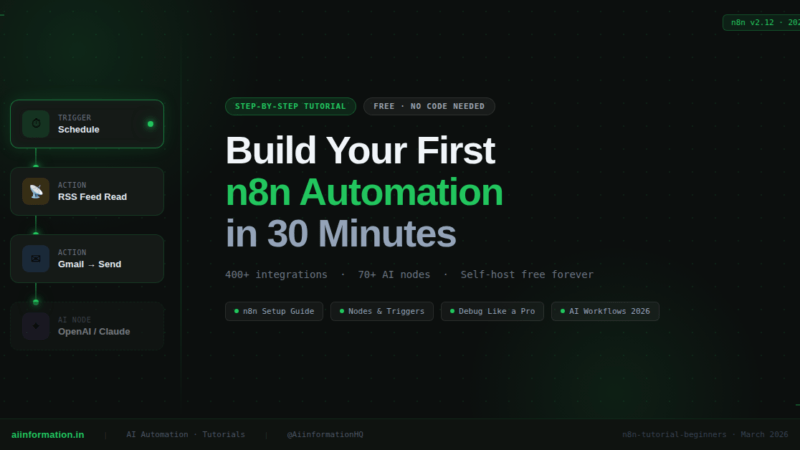
Quick Answer: n8n is a free, open-source automation tool that connects your apps and runs tasks on autopilot – no coding required. This beginner tutorial shows you exactly how to set up n8n and build your first real workflow in under 30 minutes, step by step.
📊 Key Facts About n8n
| Detail | Info |
|---|---|
| Full Name | n8n (pronounced “n-eight-n”) |
| What It Is | Open-source workflow automation platform |
| Founded | 2019 by Jan Oberhauser |
| Valuation | $1.5 billion (2025) |
| GitHub Stars | 100,000+ (top open-source projects globally) |
| Community Members | 200,000+ |
| Native Integrations | 400+ apps |
| AI Nodes | 70+ (LangChain, OpenAI, Anthropic Claude built in) |
| Current Version | n8n 2.12 (March 2026) |
| Pricing | Free (self-host) · Cloud from ~€20/month |
| Best For | Developers, startups, technical non-coders |
Table of Contents
What Is n8n? (And Why Everyone Is Suddenly Talking About It)
I spent 90 minutes every morning doing the same thing. Open Gmail. Copy data. Paste into a spreadsheet. Log it in Notion. Send a Slack update. Repeat.
Every. Single. Morning.
Then I found n8n. I built one workflow in 45 minutes. Now it does all of that while I sleep — and I wake up to it already done.
That is what n8n is. It is an automation tool that connects your apps and makes them work together — automatically. You build a visual “workflow” that runs on its own. No manual work. No copy-pasting. No forgetting.
n8n stands for “nodemation.” It was created in 2019 by Jan Oberhauser, who named it after himself being frustrated that every good domain name was already taken. He picked n8n — the 8 represents the eight letters between the first “n” and the last “n” in “nodemation.” That is the kind of founder you trust.
Here is what makes n8n different from every other tool:
It is open-source and you can self-host it. Your data never leaves your server. No one sees it. Ever.
It does not charge per task. Zapier charges you for every action inside a workflow. n8n charges per execution — meaning one workflow run counts as one execution, no matter how many steps are inside it.
It is built natively for AI. n8n comes with 70+ AI nodes including LangChain, OpenAI, and even Anthropic’s Claude. The future of automation is AI-powered — and n8n is already there.
The result? n8n has 100,000+ GitHub stars, a $1.5 billion valuation, and 200,000+ community members. This is not hype. This is real people choosing n8n over the alternatives every day.
If you want to understand automation at a deeper level, read my full breakdown of what is n8n first — then come back here to build.
n8n vs Zapier vs Make: The Honest Comparison Nobody Wants to Give You
Everyone dances around this question. I will not.
I have used all three. Here is the truth.
Full Platform Comparison
| Feature | n8n | Zapier | Make (Integromat) |
|---|---|---|---|
| Pricing Model | Per execution | Per task (per step!) | Per operation |
| Free Plan | ✅ Yes (self-host, unlimited) | ⚠️ Limited (100 tasks/month) | ⚠️ 1,000 ops/month |
| Self-Hosting | ✅ Yes | ❌ No | ❌ No |
| Native Integrations | 400+ | 7,000+ | 1,500+ |
| AI Nodes (Built-in) | ✅ 70+ with LangChain | ❌ Basic only | ❌ Basic only |
| Custom Code | ✅ Full JS + Python | ⚠️ Limited | ⚠️ Limited |
| Data Privacy | ✅ Full (when self-hosted) | ❌ Cloud only | ❌ Cloud only |
| Learning Curve | Medium | Low | Medium |
| Best For | Tech-savvy users & devs | Complete beginners | Middle ground |
Real Pricing for 1,000 Runs per Month
| Platform | Monthly Cost | What You Get |
|---|---|---|
| n8n (Self-Host) | ~$5–$10 | Unlimited runs, your own server |
| n8n Cloud (Starter) | ~€20 | 2,500 executions |
| Zapier Professional | $49–$299 | 2,000–50,000 tasks (not runs — tasks!) |
| Make Core | $9–$29 | 10,000–150,000 operations |
Here is the Zapier trap that nobody explains clearly.
Say your workflow has 5 steps and runs 1,000 times per month. With Zapier, that is 5,000 tasks consumed – not 1,000. Every step counts. On n8n, that same scenario is 1,000 executions — end of story.
At scale, n8n is 5x to 10x cheaper than Zapier. No exaggeration.
My honest verdict:
If you have zero tech experience and need an automation running in 10 minutes — use Zapier. No shame in that.
If you care about price, privacy, AI, or doing anything complex — n8n wins, and it is not even close.
I have a deeper comparison in my article Is Claude AI Better Than ChatGPT where I also look at AI tools side by side — same methodology, same honesty.
How to Set Up n8n Right Now (Two Ways — Both Easy)
You do not need to be a developer to set up n8n. I promise.
There are two options. I will explain both in plain language.
Option 1: n8n Cloud (Start in 2 Minutes — Zero Technical Setup)
This is the right choice if you have never touched a server in your life.
Steps:
- Go to n8n.io and click “Get started for free”
- Sign up with your email address
- You get a 14-day free trial — full access, no credit card needed
- After the trial, paid plans start at ~€20/month
That is it. You are in. No installation, no servers, nothing.
Start here. Get comfortable with n8n. Then decide later if you want to move to self-hosting.
Option 2: Self-Host n8n (Free Forever — Best for Privacy and Scale)
This is where n8n becomes a superpower. Run it on your own server and pay nothing for the software itself – ever.
What you need: A cloud server (DigitalOcean, Hetzner, or AWS Lightsail all work — ~$5–10/month)
Install with Docker (the recommended method):
docker volume create n8n_data

docker run -it --rm \
  --name n8n \
  -p 5678:5678 \
  -v n8n_data:/home/node/.n8n \
  docker.n8n.io/n8nio/n8n
Open your browser and go to: http://localhost:5678
You will see the n8n setup screen. Create your account. You are live.
Install with npm (if you already have Node.js):
npm install n8n -g
n8n start
Which should you pick?
| You Are… | Use This |
|---|---|
| Complete beginner | n8n Cloud (14-day trial) |
| Want free forever | Self-host on a VPS |
| Handling sensitive data | Self-host — your data stays on your machine |
| Developer / startup | Self-host + Docker |
The n8n Interface Explained Like You’re Five
When you first log in, you land on the Overview page. It looks complicated. It is not.
Here is what every section does:
Workflows – This is your list of all your automations. Think of each one as a separate project. “Daily email digest,” “New lead to Notion,” “AI content writer” — each one is a workflow.
Credentials – This is where you store your login details for apps like Gmail, Slack, Google Sheets, or OpenAI. You enter them once. n8n stores them securely. Every workflow that needs Gmail uses the same saved credential.
Executions – Every time a workflow runs, it logs here. Success, fail, partial — every run is recorded. This is your audit trail and your debugger.
The Canvas – Click into any workflow and you land on the canvas. This is your workspace. An infinite, blank grid where you drag, drop, and connect nodes. It looks like a flowchart — because that is exactly what it is.
Templates Library – n8n has 1,500+ pre-built workflows. Browse them inside the app. Click “Import to my workspace.” Edit and go. You will save hours here.
One thing I love about n8n is the AI Workflow Builder – it was introduced in late 2025. Type what you want in plain English, and n8n’s built-in AI will build the workflow structure for you. Then you just fill in your credentials and tweak. It is not perfect, but it gets you 80% there in 30 seconds.
Nodes, Workflows, and Triggers: The Three Things You Must Understand First
You can learn the whole interface later. But if you do not understand these three words, nothing will make sense.
What Is a Node?
A node is a single action. One step. One thing happening.
Examples of what a node can do:
- Fetch all emails from Gmail
- Send a message in Slack
- Add a row to Google Sheets
- Make an API request
- Run a JavaScript snippet
- Check a condition (if this, do that)
- Ask an AI a question and get a response
Every workflow is just a chain of nodes. Each one does one thing.
What Is a Trigger?
A trigger is the first node — the one that starts everything. Without a trigger, nothing runs.
There are four types of triggers:
| Trigger Type | What It Does | Example |
|---|---|---|
| Schedule Trigger | Runs at a set time | Every morning at 8am |
| Webhook Trigger | Runs when an app sends a signal | When someone submits a form |
| App Trigger | Runs when something happens in an app | When a new Gmail arrives |
| Manual Trigger | You click a button to run it | For testing |
What Is a Workflow?
A workflow is the whole chain. Trigger → Node → Node → Node → Done.
Data flows through each node like water through a pipe. Each node receives data, does something with it, and passes the result to the next node.
The data travels as JSON (a simple format that looks like {"name": "Anish", "email": "anish@test.com"}). You do not need to write JSON — n8n handles it — but knowing it exists will help you understand why things work the way they do.
Step-by-Step: Build Your First n8n Automation Today
We are going to build something real. Not a toy example. An actual automation you will use.
The workflow: Every morning at 8am, n8n fetches the latest AI news articles from an RSS feed and sends them to your email – automatically.
What you need: An n8n account + Gmail credentials (takes 3 minutes to connect)
Step 1 – Create a New Workflow
- Log in to n8n
- Click “+ New Workflow” in the top right corner
- Name it: “Daily AI News → Email”
- You now have a blank canvas in front of you
Step 2 – Add a Schedule Trigger
Every automation needs something to kick it off. Ours will run every morning.
- Click the big “+” button on the canvas
- Search for “Schedule Trigger”
- Click it – it appears as your first node
- Set it to: Every day at 8:00 AM
- Make sure the timezone matches your local time (this is important — I will explain why later)
- Click “Save”
Done. n8n will now “wake up” every morning at 8am and run whatever comes next.
Step 3 – Add the RSS Feed Node
Now we tell n8n where to get the news.
- Click “+” to the right of the Schedule Trigger
- Search for “RSS Feed Read”
- Add the node
- In the URL field, paste any RSS feed URL
Good RSS feeds to use:
- TechCrunch AI:
https://techcrunch.com/category/artificial-intelligence/feed/ - MIT Tech Review AI:
https://www.technologyreview.com/feed/ - Our site (coming soon):
https://aiinformation.in/feed
- Click “Execute Node” — you should see a list of articles appear as JSON data
If you see articles, it is working. Move to the next step.
Step 4 – Add Gmail and Send the Email
Now we take those articles and email them to yourself.
- Click “+” after the RSS node
- Search for “Gmail”
- Select “Send Email” as the action
- Click “Create New Credential” — sign in with your Google account
- Grant the permissions n8n needs
Now fill in the email fields:
- To: your@email.com
- Subject:
Daily AI News — {{$now.format('MMMM DD, YYYY')}} - Body: Click “Add Expression” and pull in the article title, link, and summary from the RSS node data
The double curly braces {{ }} are how you reference dynamic data from previous nodes. n8n shows you every available field in a dropdown — just click and insert.
Step 5 – Connect the Nodes
Make sure all three nodes are connected:
Schedule Trigger → RSS Feed Read → Gmail (Send Email)
You connect them by clicking and dragging from the small dot on the right edge of one node to the left edge of the next. A line appears between them.
Step 6 – Test It
- Click “Execute Workflow” at the top of the screen
- Watch the data flow through each node in real time — n8n highlights each node as it runs
- Check your inbox — the email should arrive within 30 seconds
If it worked — you have just built your first automation. 🎉
Step 7 – Activate It
This is the step beginners miss most often.
After testing, look at the top right corner of the canvas. There is a toggle switch. It says “Inactive.”
Click it. It turns green and says “Active.”
Only now will your workflow run automatically on schedule. If you skip this step, it just sits there doing nothing.
How to Test and Debug Without Losing Your Mind
Every workflow breaks at some point. That is normal. The question is whether you know how to find and fix it fast.
Here is my debugging process:
Step 1: Click the node that failed. n8n highlights failed nodes in red. Click it and look at the error message. It is usually very specific.
Step 2: Check the input and output. Every node shows you exactly what data went in and what came out. If a field is empty when it should not be, that is your problem.
Step 3: Run nodes one at a time. Click “Test Step” on individual nodes instead of running the whole workflow. This isolates the issue.
Step 4: Use the Executions log. Go to the Executions page. Click on a failed run. See exactly which node failed and what the error was.
Common errors and what they actually mean:
| Error Message | What It Means | How to Fix It |
|---|---|---|
| “Credentials not found” | App not connected | Re-add credentials in Settings |
| “401 Unauthorized” | API key wrong or expired | Refresh your credential |
| “Cannot read property of undefined” | A field is empty | Add an IF node to handle empty data |
| “Execution timed out” | Workflow too slow | Break into smaller workflows |
| “Workflow Inactive” | You forgot to activate | Toggle to Active |
Pro tip: Set up an Error Workflow. This is a separate n8n workflow that runs only when another workflow fails. Make it send you a Slack or email notification with the error details. Once you have more than 5 active workflows, this becomes essential.
10 n8n Automation Ideas Any Beginner Can Build This Week
Your first workflow is done. Now what?
Here are 10 real automations I have either built myself or seen work brilliantly for beginners:
- Gmail → Slack — Get a Slack message whenever an important email arrives (filter by sender or subject)
- Google Form → Notion — Automatically add every form submission to a Notion database
- RSS Feed → Telegram — Send yourself AI news updates to your Telegram channel every morning
- New Twitter Mention → Google Sheets — Track every time someone mentions your brand
- Schedule + OpenAI → Email — Generate a daily AI-written content idea list and email it to yourself
- Webhook → Airtable — Capture data from any app and log it into a clean spreadsheet
- Shopify New Order → WhatsApp — Get a WhatsApp message every time someone buys from your store
- Google Sheets New Row → Welcome Email — Auto-send a welcome email when you add a new lead
- YouTube New Video → Twitter/X — Auto-post every new video to your Twitter account
- Error Alert Workflow — Get a Slack notification any time any of your workflows break
Start with numbers 1 or 3 — they are the fastest to build and immediately useful.
For automation that goes even further, read my article on what is an AI agent — AI agents built in n8n are the next level up from basic workflows.
n8n’s AI Features in 2026 Are Insane (Here’s What’s New)
This is where n8n completely separates from Zapier and Make.
n8n 2.0 launched in December 2025. It was not a minor update. It changed the architecture of the entire platform.
Here is what is new and why it matters for you:
AI Workflow Builder
Type what you want in plain English. n8n builds the workflow structure for you. It is not perfect, but it gets you started 10x faster than a blank canvas.
This feature is available on Cloud (Trial, Starter, Pro plans) and is being rolled out to self-hosted users.
AI Agent Node
This is the biggest one.
The AI Agent node lets you build an autonomous agent — an AI that thinks, decides, and takes actions on its own. You give it tools (Gmail, a database, a calculator, a search engine) and it figures out how to use them to complete a task.
You tell it: “Check my emails, find anything about a client meeting, and add it to my Google Calendar.”
It reads your emails, finds the right ones, and adds the event — without you clicking anything.
I wrote a full explanation of how this works in my article on what is agentic AI. Read that to understand the concept, then come back and build it in n8n.
Human-in-the-Loop (New in January 2026)
n8n added two new actions to the Chat node: “Send a message” and “Send a message and wait for response.”
This means your AI agents can now pause and ask a human for input before continuing. The agent handles 90% of the work. You approve or correct the remaining 10%. This is how real AI automation works in production.
Draft/Publish System (n8n 2.0)
One of the most requested features ever. You can now build and edit workflows in Draft mode without affecting the live version. Only when you click Publish does the new version go live.
This means no more accidentally breaking a running workflow while editing it.
Isolated Code Execution (n8n 2.0)
Code nodes now run in sandboxed environments. Your custom JavaScript or Python cannot interfere with the rest of the system. This is an enterprise-grade security feature that used to cost thousands of dollars in other tools.
MCP Support
n8n now natively supports Model Context Protocol (MCP) — the new open standard that lets AI models connect to external tools. It handles multi-agent setups and RAG systems, uses multiple cloud or offline AI models, and integrates with legacy systems while staying set up for the future.
If you are building AI-powered automations in 2026, this is the platform to be on. Not Zapier. Not Make. n8n.
Want to see what AI-powered building actually looks like? Read my guide on Google AI Studio vibe coding – it pairs perfectly with n8n workflows.
The Mistakes Every n8n Beginner Makes (I Made All of Them)
Learn from my frustration. These are the six mistakes I see constantly.
Mistake 1: Forgetting to Activate the Workflow
I cannot count how many times I built something, tested it, closed the tab — and then wondered why it never ran automatically.
You have to toggle it to Active. Inactive = it only runs when you manually click Test. Active = it runs on schedule or trigger. Do not skip this.
Mistake 2: Getting the Timezone Wrong
Schedule Trigger has a timezone setting. If it is set to UTC and you are in India (IST, UTC+5:30), your “8am” workflow runs at 1:30pm.
Always set the timezone to your actual timezone before you activate.
Mistake 3: Building Too Complex Too Fast
Your first workflow should have 3 nodes. Not 15.
I tried to build a 20-node monster for my second workflow. It broke in 4 places and I could not figure out which node was the problem.
Start with 3 nodes. Make it work. Then add one node at a time.
Mistake 4: Not Checking the Templates First
There are 1,500+ pre-built templates inside n8n. Someone has probably already built exactly what you want.
I spent 3 hours building a Slack notification workflow — then found a template for it that would have taken 10 minutes. Never again.
Mistake 5: Ignoring the Executions Log
When something breaks, beginners try clicking random things until it works. Do not do this.
Go to the Executions log. Find the failed run. Click it. Read what n8n tells you. It is usually very specific about exactly what went wrong.
Mistake 6: Not Setting Up an Error Workflow
Once you have 5 or more active workflows running in the background, you need to know when one fails.
Set up a simple Error Workflow: when any workflow fails → send me a Slack message or email with the error. This takes 10 minutes to build and saves you hours of not knowing something broke.
How to Connect Any App – Even If n8n Doesn’t Have a Node for It
n8n has 400+ native integrations. But what if your app is not on the list?
You still have three options. And one of them covers literally everything.
Option 1: HTTP Request Node
Use the HTTP request node to connect to any app that has an API — you can use your existing credentials or just import a curl command.
Almost every modern app has an API. Here is how to use it:
- Add an HTTP Request node
- Enter the API endpoint URL
- Set the method: GET (fetch data), POST (send data), PUT (update), DELETE (remove)
- Add your API key in the Headers section
- Map the response data to the next node
If you can find the app’s API documentation, you can connect it to n8n. No native node needed.
Option 2: Webhooks
Many apps (Stripe, Shopify, GitHub, Typeform, Calendly) let you configure a webhook — a URL they will automatically send data to when something happens.
In n8n:
- Add a Webhook trigger node
- Copy the URL n8n generates for you
- Paste it into your app’s webhook settings
- Every time that event fires in your app, your n8n workflow runs automatically
Stripe sends a payment? Your workflow runs. Form submitted? Workflow runs. New GitHub commit? Workflow runs.
Option 3: Community Nodes
n8n is open-source. Developers all over the world build and share custom nodes for apps that n8n does not officially support yet.
Check the n8n Community Forum and npm registry for community-built nodes. Many popular niche tools already have them.
n8n Pricing: What You Actually Pay
n8n pricing confuses beginners because it works differently from Zapier and Make. Let me break it down in simple terms.
Self-Hosted — Free Forever
Download n8n. Run it on a server. Pay nothing for the software. Unlimited workflows, unlimited executions, unlimited users.
You only pay for the server. A basic DigitalOcean or Hetzner VPS costs $4–$10/month.
This is genuinely free. Not “free with limits.” Actually free.
n8n Cloud Plans
| Plan | Price | Executions/Month | Best For |
|---|---|---|---|
| Starter | ~€20/month | 2,500 | Solo automators |
| Pro | ~€50/month | 10,000 | Small teams |
| Enterprise | Custom pricing | Unlimited | Large organizations |
All plans include a 14-day free trial with no credit card required.
The Zapier Math That Will Shock You
A workflow with 10 steps that runs 1,000 times per month:
- Zapier: 10 steps × 1,000 runs = 10,000 tasks → This pushes you into the $69–$299/month range fast.
- n8n Cloud: 1,000 runs = 1,000 executions → €20/month Starter plan.
Same workflow. Same result. n8n: 3x to 10x cheaper.
This is why Vodafone, Delivery Hero, and StepStone Group all use n8n at enterprise scale. The math is not even close.
People Also Ask
What is n8n used for? n8n is used to automate repetitive tasks by connecting apps together. The most common uses are: sending automated emails, syncing data between tools, building AI agents, monitoring social media, auto-responding to leads, and creating scheduled reports. Basically — anything you do manually on a computer more than once a week is a candidate for n8n.
Is n8n free to use? Yes. n8n is completely free when you self-host it on your own server. There are no limits on workflows or executions. Your only cost is the server — typically $5–$10 per month. If you want n8n to manage the server for you, cloud plans start at ~€20/month.
Is n8n better than Zapier? For most technical users — yes. n8n is cheaper at scale, supports self-hosting for data privacy, has native AI capabilities that Zapier does not come close to matching, and allows full JavaScript and Python in workflows. Zapier’s only real advantage is a lower learning curve and more native app integrations (7,000+ vs 400+).
Do I need to know how to code to use n8n? No. The visual interface is genuinely usable without writing any code. That said — knowing what JSON looks like, and understanding basic API concepts, will make you 10x better at n8n. It is worth spending one afternoon learning these basics. It will pay off immediately.
How do I install n8n on my computer? The easiest way: install Docker, then run docker run -it --rm --name n8n -p 5678:5678 docker.n8n.io/n8nio/n8n. Open your browser and go to http://localhost:5678. Alternatively, install Node.js and run npm install n8n -g followed by n8n start. For total beginners — just use the cloud version at n8n.io and skip the installation entirely.
Can n8n replace Zapier completely? For most use cases — yes. n8n covers everything Zapier does plus adds self-hosting, full custom code, much deeper AI capabilities, and significantly lower cost. The main trade-offs are a steeper learning curve and fewer out-of-the-box native integrations. If you are a small business or solo operator willing to spend a few hours learning, n8n can fully replace Zapier — and save you hundreds of dollars a year.
Is n8n safe to use for sensitive business data?
Yes — especially when self-hosted. When you run n8n on your own server, your data never touches n8n’s servers or any third-party infrastructure. n8n 2.0 also introduced sandboxed code execution and role-based access control, making it genuinely enterprise-grade. Regulated industries like finance and healthcare specifically choose self-hosted n8n because of this.
What is the difference between a node and a workflow in n8n?
A node is one step — one action, like “send an email” or “fetch data from an API.” A workflow is the full chain of connected nodes that together complete an entire automation. Think of a node as one sentence, and a workflow as the whole paragraph.
I built a workflow but it is not running automatically. What is wrong?
You probably forgot to activate it. Look for the toggle in the top right of the workflow canvas. It should say “Active” and be green. If it says “Inactive,” your workflow only runs when you manually click Test. Toggle it to Active and it will run on your trigger automatically.
Can I use n8n to build AI agents?
Yes — and this is honestly one of the best reasons to use n8n in 2026. The AI Agent node lets you build fully autonomous agents that use tools, make decisions, and take actions without human input. The new Human-in-the-Loop feature (January 2026) even lets agents pause and ask you for confirmation before doing something. Read my guide on what is an AI agent to understand what this means before you build one.
Does n8n work with ChatGPT and Claude AI?
Yes. n8n has native nodes for OpenAI (GPT-4o, GPT-4o mini) and Anthropic’s Claude. You can drop either into any workflow. I compared the two models in detail in Is Claude AI Better Than ChatGPT — both work excellently inside n8n, but they each have different strengths depending on your use case.
How many workflows can I run at the same time?
On self-hosted n8n, it depends on your server. n8n officially handles up to 220 workflow executions per second on a single instance — that is more than enough for any small or medium operation. On cloud plans, concurrent execution limits depend on your tier.
What is the n8n community like?
Excellent. 200,000+ members, an active forum, and thousands of template contributors. Almost any problem you hit has already been solved and posted with a solution on the community forum. This is one of n8n’s biggest hidden advantages — the community is genuinely helpful and fast.
Key Takeaways
- n8n is a free, open-source automation platform — self-host it for zero software cost with unlimited workflows and executions
- n8n 2.0 (December 2025) introduced Draft/Publish system, sandboxed code execution, and enterprise-grade security — it is now production-ready for any scale
- Every workflow has three parts: a Trigger, Action nodes, and the data connections between them
- n8n is 3x to 10x cheaper than Zapier at scale because it charges per execution — not per step inside each execution
- The 70+ native AI nodes (OpenAI, Anthropic Claude, LangChain) make n8n the most powerful platform for AI-powered automation in 2026
- The HTTP Request node connects n8n to any app with an API — so the “only 400 integrations” limitation barely matters in practice
- Always set the correct timezone in your Schedule Trigger or your automations will run at the wrong time
- Toggle your workflow to Active after testing — Inactive workflows do not run automatically
- Test node by node when debugging — never run the whole workflow blindly trying to find errors
- Start with the 1,500+ template library before building from scratch — your workflow probably already exists
Related Articles
- What Is n8n? The Complete Beginner’s Guide
- What Is an AI Agent? The Simplest Explanation You Will Find
- What Is Agentic AI? And Why It Changes Everything
- Google AI Studio Vibe Coding: Build Apps Without Writing Code
- Is Claude AI Better Than ChatGPT? My Honest Verdict After Testing Both
- What Is Vibe Coding? The New Way People Are Building Software
Sources
- n8n Official Website
- n8n Features Page
- n8n Release Notes (March 2026)
- n8n GitHub Repository
- Releasebot — n8n March 2026 Updates
- HatchWorks AI — n8n Guide 2026
- Flowmondo — n8n vs Zapier vs Make (2026)
- Parseur — Zapier vs Make vs n8n Comparison
- freeCodeCamp — Beginner’s Guide to Automation with n8n

Leave a Reply